Can Google index JavaScript? Yes. But “Google can render JavaScript” isn’t the same as “Google will index my JavaScript site the way I expect.” Links built with click handlers, routes using URL fragments, error pages that return 200, and noindex tags changed by scripts all trip sites up. Google’s JavaScript SEO documentation explains exactly how its pipeline works and where things go wrong.
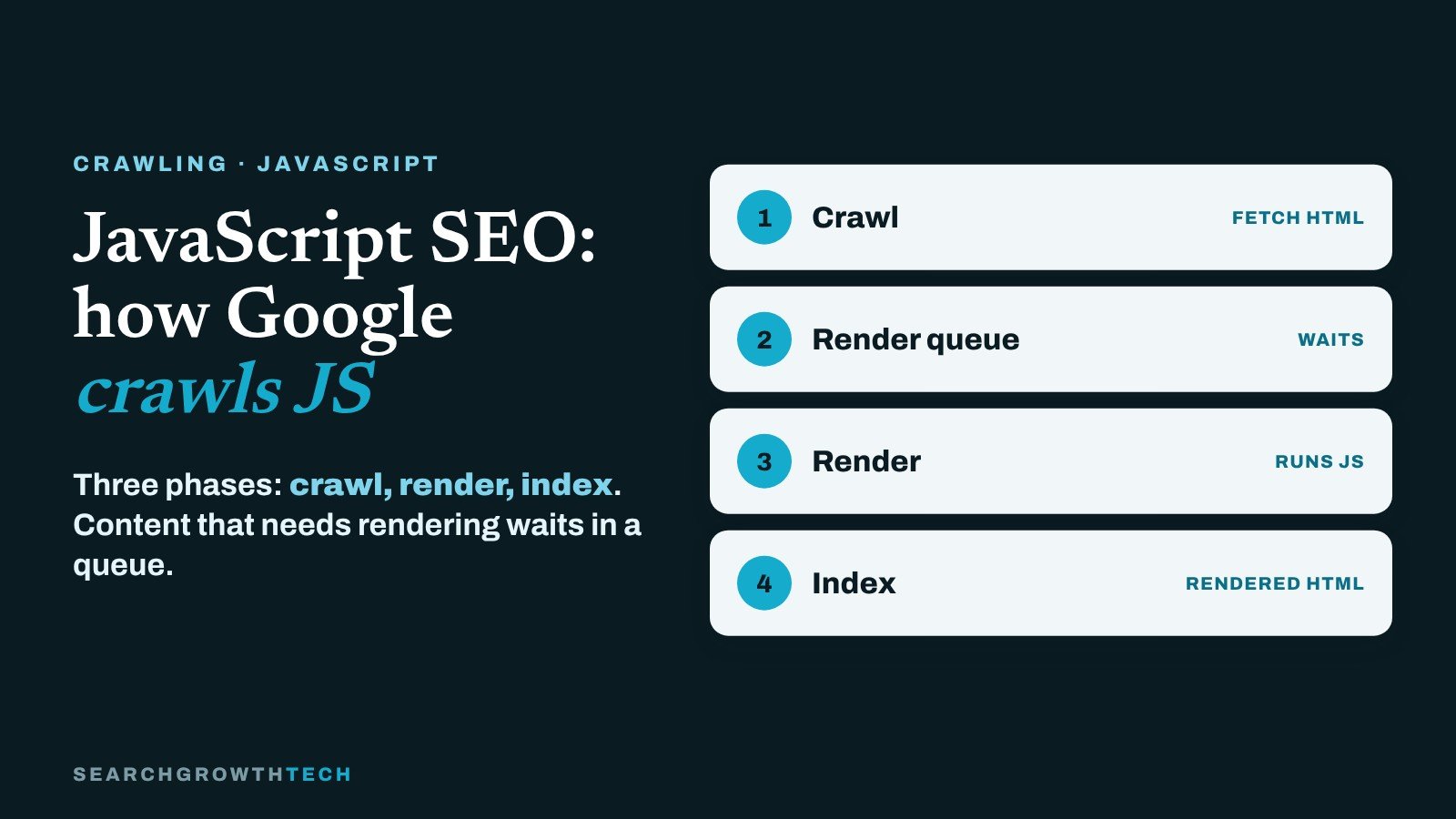
In short: Google processes JavaScript sites in three phases: crawling, rendering and indexing. Googlebot queues every page with a 200 status for rendering, which can take a few seconds or longer. For JavaScript sites to be indexed reliably, use real <a href> links, the History API instead of URL fragments for routing, and fix soft 404s in single-page apps with a redirect to a 404 URL or a noindex tag. Don’t rely on JavaScript to remove a noindex: Google may skip rendering pages that start with one. If JavaScript sets a canonical, it should match the HTML. Google calls dynamic rendering “a workaround and not a recommended solution,” and recommends server-side rendering, static rendering or hydration. Facts below were checked against Google Search Central’s JavaScript SEO documentation on 5 November 2026.
How Google Processes JavaScript
| Phase | What happens | What can go wrong |
|---|---|---|
| 1. Crawling | Googlebot fetches the URL and checks robots.txt | Blocked JS or CSS files, blocked URLs |
| 2. Rendering | Pages with a 200 status are queued, then rendered with a headless browser | Queue delays, scripts that fail, content needing user actions |
| 3. Indexing | Google indexes the rendered HTML and finds links in it | Links that aren’t <a href> elements, soft 404s, missing content |
The JavaScript SEO Rules That Matter Most
1. Use Real Links
Google says it can only discover links that are <a> elements with an href attribute. A button with an onclick handler or a span that navigates via script isn’t a link to Google.
| Google can follow | Google can’t follow |
|---|---|
<a href="/shoes/">Shoes</a> | <span onclick="go('/shoes')">Shoes</span> |
<a href="https://example.com/shoes/"> | <a onclick="go('/shoes')"> (no href) |
2. Use the History API, Not Fragments
For client-side routing, Google says don’t use fragments (#/shoes) to load different content. Use the History API so each view has a real URL like /shoes.
3. Fix Soft 404s in Single-Page Apps
Single-page apps often show “not found” content with a 200 status. Google suggests two fixes: a JavaScript redirect to a URL that returns a 404, or adding <meta name="robots" content="noindex"> to error views with JavaScript.
4. Don’t Remove noindex With JavaScript
If the initial HTML has a noindex tag, Google “may skip rendering and JavaScript execution,” so a script that removes noindex may never run for Google.
5. Keep Canonicals Consistent
HTML is the preferred place for canonical tags. If JavaScript sets one, Google says to set it to the same value as the original HTML. See our canonical tags guide.
6. Titles and Descriptions Can Be Set by JavaScript
Google says JavaScript can set or change the title and meta description. Make sure each view gets unique, accurate values.
7. Don’t Block Resources
If robots.txt blocks the JavaScript or CSS needed to render a page, Google may not see the content. See our robots.txt guide.
8. Use Content Fingerprinting for Caching
Googlebot may ignore caching headers. Google recommends fingerprinting file names (for example main.2bb85551.js) so it fetches new versions when code changes.
9. Lazy-Load Carefully
Google calls lazy-loading images a good strategy, but content should load when it enters the viewport, not only after a scroll or click event Google may not trigger.
Rendering Options Compared
| Approach | Google’s view | Trade-off |
|---|---|---|
| Server-side rendering | Recommended | More server work, best for SEO |
| Static rendering (pre-rendering) | Recommended | Great for content that doesn’t change per user |
| Hydration | Recommended | Server HTML first, then interactive JavaScript |
| Client-side rendering only | Works if rendering succeeds | Relies on the render queue. Other bots may not run JavaScript |
| Dynamic rendering | “A workaround and not a recommended solution” | Extra complexity and resources |
Google notes server-side or pre-rendering is “still a great idea,” since not all bots can run JavaScript.
How to Test a JavaScript Page
- Use URL Inspection in Search Console and view the rendered HTML.
- Check that key content, links and canonical appear in the rendered version.
- Look at the screenshot and any JavaScript console errors.
- Check the Page Indexing report for soft 404s.
- Turn off JavaScript in your browser to see what non-rendering crawlers get.
Key Takeaways
- Google crawls, renders and indexes JavaScript pages in three phases.
- Only <a href> links are discoverable.
- Use the History API, not URL fragments, for routes.
- Fix soft 404s in single-page apps with a 404 redirect or noindex.
- Don’t rely on JavaScript to remove noindex.
- Prefer server-side rendering, static rendering or hydration over dynamic rendering.
FAQs
Can Google Index JavaScript Websites?
Yes. Google crawls, renders and indexes JavaScript pages, but it depends on rendering succeeding.
Does Google Follow JavaScript Links?
Only if they’re <a> elements with an href attribute.
Is Dynamic Rendering Still Recommended?
No. Google calls it a workaround and recommends server-side rendering, static rendering or hydration.
How Do I Handle 404s in a Single-Page App?
Redirect to a URL that returns a 404, or add a noindex robots tag to error views.
Can JavaScript Set the Canonical Tag?
Yes, but Google says it should match the canonical in the original HTML.
How Do I See What Google Renders?
Use URL Inspection in Search Console and view the rendered HTML and screenshot.