You have written a better headline for search results, but WordPress keeps showing the old one. Or Google is still displaying “Home” for your homepage. Changing the SEO title in WordPress takes less than a minute once you know which screen controls which title.
In short: to change the SEO title in WordPress, open the post or page, scroll to your SEO plugin’s panel (Yoast SEO, Rank Math, All in One SEO or SEOPress), type the new title in the SEO title field and click Update. To change titles for many pages at once, edit the title template in the plugin’s settings. Google may take a few days or weeks to show the new title, and it can still choose a different one.
Below are the exact steps for each plugin, the homepage, category pages and bulk edits, plus how to check that your change is live.
Watch: How to Change the SEO Title in WordPress (Step by Step for Every Plugin)
Before You Start: Which Title Are You Changing?
WordPress pages have two main titles. Changing one does not change the other.
| You want to change | Where to change it |
|---|---|
| The headline visitors see at the top of the page (H1) | The title field at the top of the WordPress editor |
| The headline in Google and the browser tab (SEO title) | Your SEO plugin’s SEO title field, or its title templates |
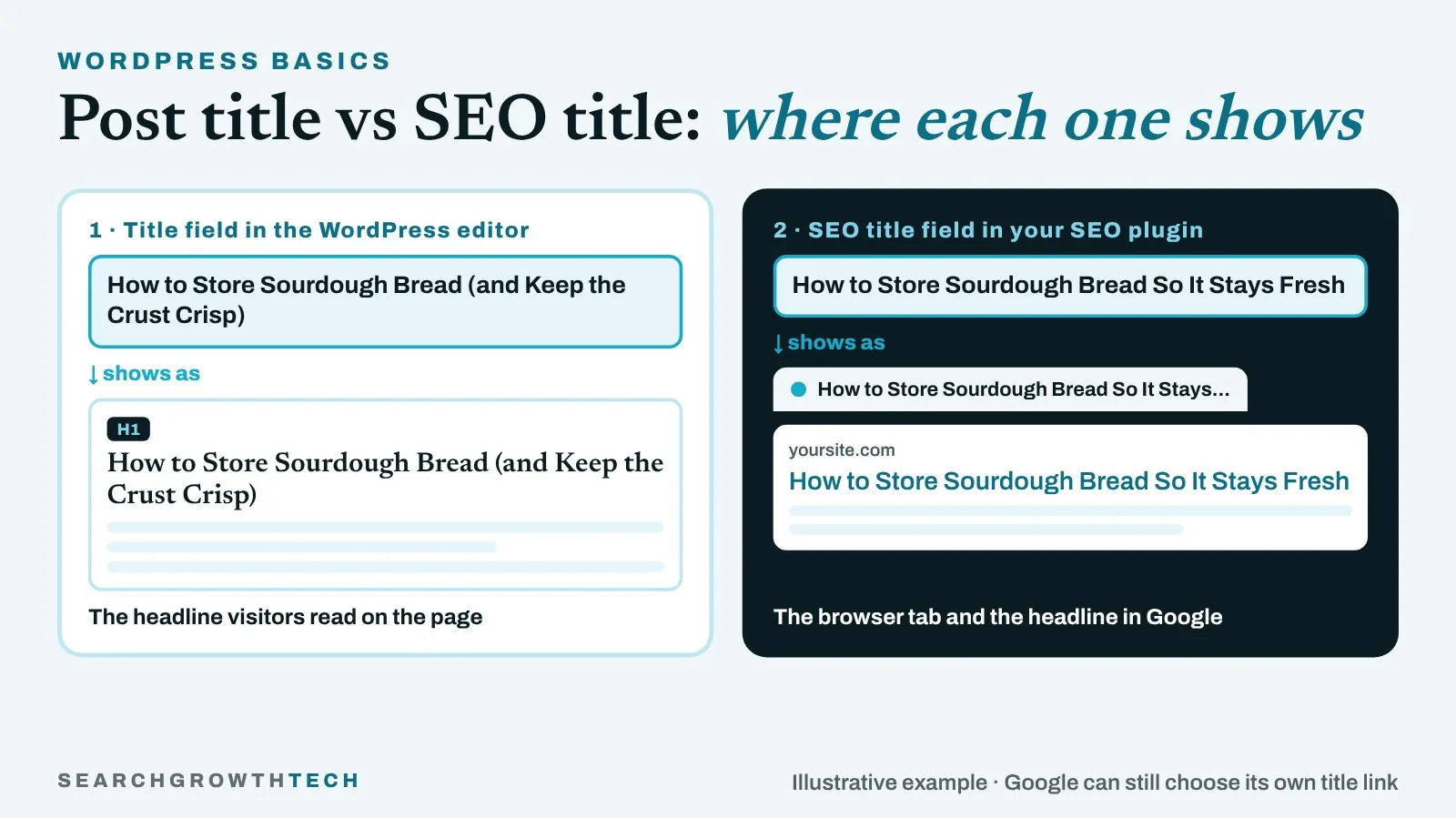
If you are not sure what the difference is, our guide on what an SEO title in WordPress is explains it.
How to Change the SEO Title on a Single Post or Page
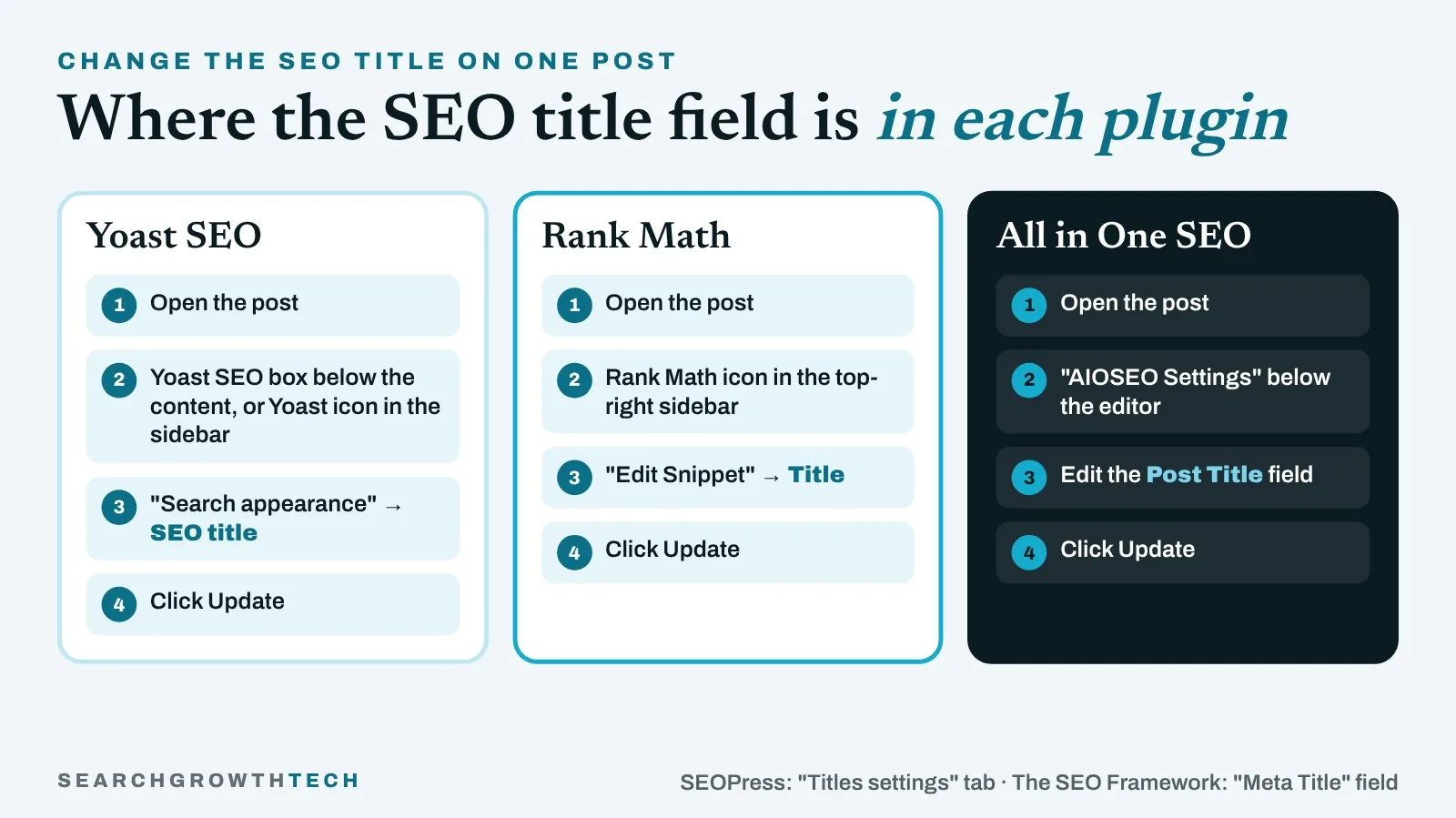
Yoast SEO
- Open the post or page in the editor.
- Scroll to the Yoast SEO box below the content, or open the Yoast icon in the top-right sidebar.
- Under “Search appearance”, click into the “SEO title” field.
- Delete or keep the variables such as Title, Separator and Site title, and type your new title.
- Click Update or Publish.
Rank Math
- Open the post and click the Rank Math icon in the top-right sidebar.
- Click “Edit Snippet”.
- Change the Title field and close the panel.
- Click Update.
All in One SEO (AIOSEO)
- Scroll to “AIOSEO Settings” below the editor.
- Edit the “Post Title” field. You can mix your own text with smart tags such as Post Title and Site Title.
- Click Update.
SEOPress and The SEO Framework
Both plugins add a settings box below the editor. In SEOPress, open the “Titles settings” tab and edit the Title field. In The SEO Framework, edit the “Meta Title” field. Click Update to save.
How to Change the Homepage SEO Title
The homepage is where many sites still show a weak title such as “Home”. Where you change it depends on how your homepage is set up.
- If your homepage is a static page (Settings, then Reading, then “A static page”), edit that page and change the SEO title in your plugin’s box, just like any other page.
- If your homepage shows your latest posts, there is no page to edit. Change it in the plugin settings instead. In Yoast SEO, go to Yoast SEO, then Settings, then Content types, then Homepage. Rank Math and AIOSEO have a similar homepage section in their title settings.
- Without an SEO plugin, WordPress builds the homepage title from the Site Title and Tagline under Settings, then General.
How to Change SEO Titles for Many Pages at Once
If every post has the same problem, such as a long site name at the end, change the template rather than each post. Individual titles you have already written by hand stay as they are.
| Plugin | Where the title templates live |
|---|---|
| Yoast SEO | Yoast SEO, then Settings, then Content types (posts, pages), Categories & tags, or Advanced (archives and special pages) |
| Rank Math | Rank Math, then Titles & Meta |
| All in One SEO | All in One SEO, then Search Appearance |
| SEOPress | SEO, then Titles & Metas |
Yoast SEO also has a bulk editor under Yoast SEO, then Tools, then Bulk editor, where you can type new SEO titles for many posts in one list.
Category and Tag Pages
Category archives often get thin, repeated titles such as “Archives – Site Name”. To fix one category, go to Posts, then Categories, click Edit on the category, and change the SEO title in the plugin box near the bottom. To fix all of them, edit the category template in the plugin settings listed above.
How to Change the SEO Title Without a Plugin
Without an SEO plugin, WordPress creates the title from the post title and the site name, so the only no-code options are changing the post title itself or the Site Title under Settings, then General.
Developers can change the format with the document_title_parts and document_title_separator filters in a child theme or code snippet. For most site owners, a free SEO plugin is safer and easier.
Write a Better Title, Not Just a Different One
Google’s SEO Starter Guide says a good title is “unique to the page, clear and concise, and accurately describes the contents of the page.” When you change a title, check it against these points:
- It describes the page clearly and puts the main topic near the start.
- It uses your main keyword once, naturally.
- It matches what the H1 and content are about.
- It is different from every other title on your site.
- Your brand appears once at most, at the start or end.
Google does not set a character limit for titles, but it cuts them to fit the screen. Most plugins show a length or width bar to warn you when a title is likely to be cut.
Why Your New Title Is Not Showing Yet
| Problem | Likely cause | Fix |
|---|---|---|
| Old title still in the browser tab | A caching plugin or CDN is serving an old copy | Clear the site cache and your browser cache |
| Old title still in Google | Google has not recrawled the page yet | Use URL Inspection in Search Console and click Request indexing |
| Google shows a different title from yours | Google generated its own title link | Make the title clearer, unique and consistent with the H1 |
| Two titles in the page source | The theme and the SEO plugin both add a title tag | Ask your developer to remove the theme’s hard-coded title tag |
| Change has no effect at all | Two SEO plugins are active | Keep one SEO plugin and deactivate the other |
Google’s documentation says title links are generated automatically and can come from the title tag, headings, prominent text or links pointing to the page. A clear, accurate title makes it more likely Google uses yours.
How to Check Your Change Worked
- Open the page and read the browser tab.
- Right-click, choose “View Page Source” and search for
<title>. Confirm there is exactly one and that it shows your new text. - After Google recrawls the page, search for its topic and look at the headline.
- In Search Console, compare clicks and click-through rate for the page over a few weeks before and after the change.
Key Takeaways
- Change a single SEO title in your SEO plugin’s box on the post or page, then click Update.
- Change many titles at once with the plugin’s title templates or Yoast’s bulk editor.
- Homepages showing latest posts are edited in the plugin’s homepage settings, not on a page.
- Clear your cache and request indexing if the old title still appears.
- Google can still choose its own title, so keep titles clear, unique and consistent with the H1.
FAQs
How Do I Change the SEO Title in WordPress?
Open the post or page, find your SEO plugin’s panel, edit the SEO title field, and click Update. In Yoast SEO it is called “SEO title”, in Rank Math it is under “Edit Snippet”, and in AIOSEO it is “Post Title”.
Does Changing the Post Title Change the SEO Title?
Only if the SEO title uses the post title variable, which is the default in most plugins. If you typed a custom SEO title, changing the post title will not affect it.
How Long Does Google Take to Show a New SEO Title?
It depends on when Google recrawls the page, which can take days or weeks. Requesting indexing in Search Console can speed this up, but it does not guarantee a time.
Can I Change the SEO Title Without a Plugin?
You can change the post title or the Site Title in Settings, then General. Custom formats need code using WordPress title filters, so a plugin is usually easier.
Why Does Google Ignore My SEO Title?
Google generates title links automatically and may use your H1 or other text if your title is vague, repeated, outdated or does not match the page.
Will Changing SEO Titles Hurt My Rankings?
A clearer, more accurate title should not hurt. Change important pages one at a time and watch their clicks in Search Console so you can see the effect.