You don’t want Ahrefs crawling your whole site. You just want it to stay away from a few pages: a staging folder, a landing page you are testing, or a set of filtered URLs that waste crawl time. Most guides show one line of robots.txt and stop there. That works, but it often fails in a way they never mention.
In short: to stop Ahrefs from crawling certain pages, add a group for User-agent: AhrefsBot to your robots.txt with a Disallow line for each page or folder, such as Disallow: /private/. Add User-agent: AhrefsSiteAudit to the same group if you also want to keep Ahrefs Site Audit out. Ahrefs says both bots obey robots.txt Allow and Disallow rules. If you only want to skip pages in your own Site Audit project, use the exclusion rules in Ahrefs’ crawl settings instead and leave robots.txt alone. Facts below were checked against Ahrefs’ official bot page and help center on 5 November 2026.
Here is the exact code, the mistake that can quietly undo your other rules, and how to check it worked.
First, Which Ahrefs Crawler Do You Mean?
Ahrefs runs two crawlers, and “stop Ahrefs crawling” can mean either one.
| Crawler | What it does, according to Ahrefs | How to keep it off certain pages |
|---|---|---|
AhrefsBot | Builds the Ahrefs database (backlinks, keywords, pages) and the index of Yep, the search engine Ahrefs runs | Disallow rules in robots.txt |
AhrefsSiteAudit | Crawls a site when an Ahrefs user runs a Site Audit on it | Disallow rules in robots.txt, or exclusion rules if it is your own audit project |
Ahrefs says both obey robots.txt by default. One exception: a verified site owner can tell AhrefsSiteAudit to ignore robots.txt on their own site, so they can audit sections that are normally blocked.
Situation 1: Block AhrefsBot From Specific Pages With robots.txt
Block One Folder
User-agent: AhrefsBot
Disallow: /private/
This blocks every URL that starts with /private/, including /private/page-1/ and /private/files/report.pdf.
Block Several Pages and Folders
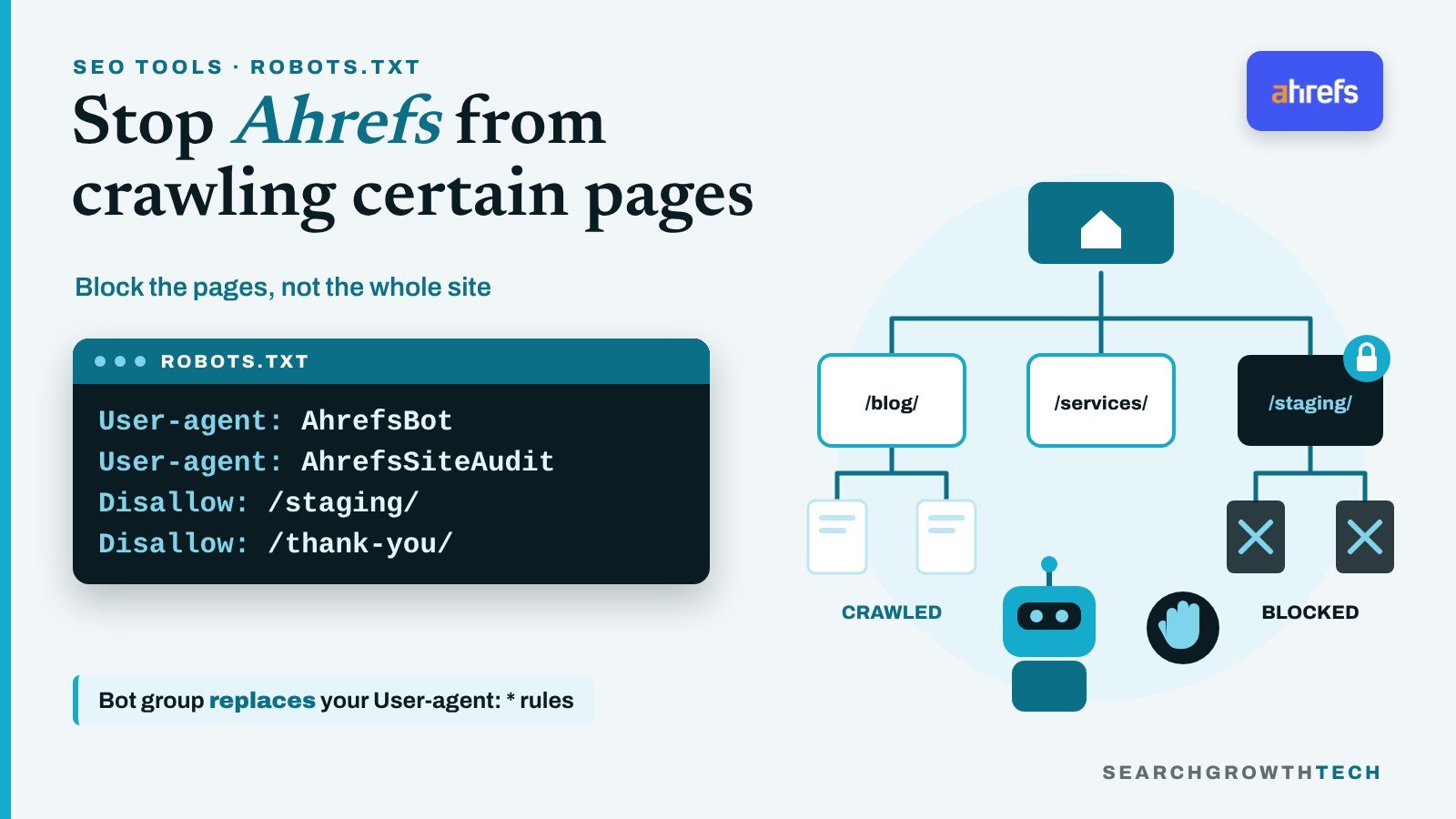
User-agent: AhrefsBot
Disallow: /staging/
Disallow: /thank-you/
Disallow: /landing/test-offer/
Robots.txt rules match the start of the URL path. Disallow: /thank-you/ blocks that page and anything below it, but not /thank-you-2/.
Block a Folder but Allow One Page Inside It
User-agent: AhrefsBot
Disallow: /resources/
Allow: /resources/free-guide/
Under the robots.txt standard (RFC 9309), the most specific matching rule wins, and the longer path is the more specific one. Ahrefs says its bots respect both Allow and Disallow rules.
Keep Ahrefs Site Audit Out of the Same Pages
User-agent: AhrefsBot
User-agent: AhrefsSiteAudit
Disallow: /staging/
Disallow: /thank-you/
Listing two user-agents above the same rules applies those rules to both bots. This stops other people’s Site Audit crawls from fetching those pages. Remember that a verified owner of the site can still override it for their own audits.
The Mistake That Undoes Your Other Rules
This is the part competing guides skip, and it can cause real problems.
Under the robots.txt standard, a crawler obeys only the group that matches its user-agent most specifically. If you add a User-agent: AhrefsBot group, AhrefsBot follows that group and ignores your User-agent: * group completely.
Say your file looks like this:
User-agent: *
Disallow: /wp-admin/
Disallow: /cart/

User-agent: AhrefsBot
Disallow: /staging/
You might expect AhrefsBot to skip /wp-admin/, /cart/ and /staging/. Under the standard, it only skips /staging/. To keep all three blocked, repeat the general rules inside the AhrefsBot group:
User-agent: *
Disallow: /wp-admin/
Disallow: /cart/

User-agent: AhrefsBot
Disallow: /wp-admin/
Disallow: /cart/
Disallow: /staging/
The same rule applies to any bot you give its own group, including Googlebot. Check this whenever you add a bot-specific section.
Situation 2: Skip Pages in Your Own Ahrefs Site Audit
If you only want your own Site Audit to ignore some pages, you don’t need robots.txt. Ahrefs’ help center gives these options under Project Settings, then Site Audit, then Crawl Settings. You can also set them when you create a new project.
- Don’t crawl URLs matching the pattern: excludes any URL containing the pattern, for example
/news. Regular expressions are supported. - Only crawl URLs matching the pattern: limits the crawl to URLs containing the pattern, for example
/products. - Remove URL parameters: crawls
/page/once instead of every/page/with a different parameter. - Follow nofollow links: switch this off so the audit skips pages it would only reach through nofollow links.
Some useful patterns for WordPress sites:
| Goal | Pattern for “Don’t crawl URLs matching” |
|---|---|
| Skip tag archives | /tag/ |
| Skip author archives | /author/ |
| Skip paginated archive pages | /page/[0-9]+ |
| Skip search result pages | [?&]s= |
| Skip tag and author archives together | /(tag|author)/ |
One limit to know: Ahrefs says it cannot tell a page is noindex before crawling it, so you cannot exclude noindex pages from the crawl itself. You can hide noindex pages from your Site Audit reports instead.
How to Add the Rules in WordPress
- Check your live file at
yoursite.com/robots.txtand copy what is there. - Open your robots.txt editor. In Yoast SEO, go to Yoast SEO, then Tools, then File editor. Rank Math and All in One SEO have their own editors. You can also edit the file in your site’s root folder through your host’s file manager or SFTP.
- Add the AhrefsBot group, and copy any general Disallow rules into it, as shown above.
- Keep your sitemap line and existing Googlebot rules unchanged.
- Save, clear your cache, and recheck the live file in a private browser window.
Be careful with typos. Ahrefs says that if your robots.txt contains errors, its bots cannot recognize your commands and will keep crawling as before. A misspelled User-agent line is enough.
Other Ways to Control Ahrefs (and When to Use Them)
| Method | Best for | Notes |
|---|---|---|
| robots.txt Disallow | Specific pages or folders | The method Ahrefs documents. Easy to reverse |
| robots.txt Crawl-delay | Reducing load without blocking | Ahrefs says it follows the delay for HTML pages, but rendering JavaScript can load several files at once |
| Server or firewall rules | Bots you suspect are fake or ignoring robots.txt | Match the user-agent and the URL path. Ahrefs says Cloudflare lists both of its bots as verified good bots |
| Temporary 4xx or 5xx responses | Short outages or maintenance | Ahrefs says its bot slows down automatically when it sees these errors |
| Site Audit exclusion rules | Your own audit projects | No change to your website needed |
What Blocking Ahrefs Does Not Do
- It does not hide links pointing to the page. Backlinks sit on other websites, and Ahrefs finds them by crawling those sites. Blocking AhrefsBot stops it reading your page, not other pages that link to it.
- It does not work instantly. Ahrefs says AhrefsBot may need some time to pick up robots.txt changes, which happens before its next scheduled crawl.
- It does not affect Google. Rules in an AhrefsBot group apply only to Ahrefs. Your Google crawling and rankings are unchanged.
- It does affect Yep. AhrefsBot also builds the index for Yep, Ahrefs’ search engine. Blocked pages will not be crawled for Yep either.
- It does not block other SEO tools. Semrush and Moz use their own crawlers. Our guide on blocking Moz’s crawlers covers Moz’s two user-agents.
How to Check the Block Is Working
- Read the live robots.txt and confirm the AhrefsBot group and paths are spelled exactly right.
- Use Ahrefs’ status checker. Ahrefs’ bot page includes a tool that shows whether AhrefsBot and AhrefsSiteAudit can crawl your website.
- Check your server logs for “AhrefsBot” in the user-agent. Requests to blocked paths should stop after the bot rereads your file.
- Verify it is really Ahrefs. Ahrefs says the reverse DNS of its crawler IPs always ends in ahrefs.com or ahrefs.net, and it publishes its IP ranges. A bot using the name from another address is not Ahrefs, and robots.txt will not stop it.
New to the tool itself? Read our guide on what Ahrefs is and who it is for.
Key Takeaways
- Add a
User-agent: AhrefsBotgroup withDisallowlines for each page or folder you want blocked. - Add
User-agent: AhrefsSiteAuditto the same group to keep Site Audit crawls out too. - A bot-specific group replaces your
User-agent: *rules for that bot, so copy the general rules into it. - For your own Site Audit, use the “Don’t crawl URLs matching the pattern” setting instead of robots.txt.
- Blocking Ahrefs does not hide backlinks to the page and has no effect on Google.
FAQs
How Do I Stop Ahrefs From Crawling Certain Pages?
Add User-agent: AhrefsBot to robots.txt, followed by a Disallow line for each path, such as Disallow: /private/. Ahrefs says AhrefsBot obeys these rules.
What Is the Difference Between AhrefsBot and AhrefsSiteAudit?
AhrefsBot builds the Ahrefs and Yep databases. AhrefsSiteAudit crawls a site when someone runs an Ahrefs Site Audit on it. Each has its own robots.txt user-agent.
Can I Block Ahrefs From a Single Page?
Yes. Use the page path, such as Disallow: /landing/test-offer/. Remember it also blocks any URL that starts with that path.
Why Is AhrefsBot Still Crawling Pages I Blocked?
It may not have reread your robots.txt yet, the file may contain an error, or the bot may be a fake using the AhrefsBot name. Check the file, wait for the next crawl, and verify the IP with reverse DNS.
Will Blocking AhrefsBot Hurt My Google Rankings?
No. Rules written for AhrefsBot apply only to Ahrefs. Google ignores them.
How Do I Exclude Pages From My Ahrefs Site Audit?
Go to Project Settings, then Site Audit, then Crawl Settings, and add a pattern under “Don’t crawl URLs matching the pattern.” Regular expressions are supported.